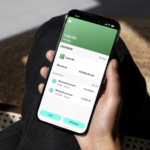


A marketing manager working from a cafe near King’s Cross once had her laptop compromised through nothing more exotic than the cafe’s open Wi-Fi network and a login page that looked exactly like her company’s single sign-on screen. She typed her password in without a second thought, and within an hour, someone was reading her work email from a different country.
No malware, no sophisticated exploit, just a convincing fake page and a moment of inattention on public Wi-Fi. Remote work has scattered company data across home networks, coffee shops, and personal devices in ways that traditional office security was never designed to handle, and the habits that protect against incidents like this one are neither expensive nor especially technical, just consistently applied.
Password Managers and Passphrase Habits
Weak, reused passwords remain one of the most common ways accounts get compromised, and the fix is simpler than most people assume: a password manager removes the need to remember dozens of unique passwords by generating and storing them securely, unlocked by a single strong master password. Tools like Bitwarden, 1Password, and Dashlane sync across devices, autofill login forms, and flag reused or weak passwords across an entire account list in a single scan.
The habit of reusing the same password across multiple sites is exactly what turns a single data breach into a much larger problem, since attackers routinely test leaked credentials from one breached site against other popular services, a practice known as credential stuffing. A unique, randomly generated password for every account, something a password manager makes effortless, means a breach at one company has no bearing on the security of accounts elsewhere. Practical habits worth building around password management:
- Use a password manager for every account: generating and storing unique passwords removes the temptation to reuse a familiar one.
- Build a strong master password or passphrase: a long string of unrelated words is both memorable and harder to crack than a short, complex-looking password.
- Enable breach monitoring: most password managers alert users automatically when a stored credential appears in a known data breach.
- Avoid storing passwords in a browser alone: dedicated password managers offer stronger encryption and cross-device syncing than most built-in browser tools.
- Change any reused password immediately: prioritise updating passwords shared across multiple accounts as soon as a manager flags them.
Setting this up takes perhaps thirty minutes initially, migrating existing passwords into the manager and updating the weakest ones, but it closes one of the most exploited security gaps for remote workers almost immediately.
Two-Factor Authentication Done Right
A password alone, however strong, is a single point of failure, which is exactly why two-factor authentication has become a standard recommendation across nearly every security guide. Adding a second verification step, something the user has in addition to something they know, means a stolen password alone is not enough for an attacker to access an account.
Not all forms of two-factor authentication offer the same protection, however. SMS-based codes are better than no second factor at all but remain vulnerable to SIM-swapping attacks, where an attacker convinces a mobile carrier to transfer a victim’s phone number to a new SIM card.
Authenticator apps like Google Authenticator or Authy generate time-based codes directly on a device without relying on the mobile network, offering stronger protection against interception. Hardware security keys, physical devices like a YubiKey that plug into a USB port or connect wirelessly, offer the strongest protection currently available, since they cannot be phished or intercepted remotely the way a code can. A sensible approach to rolling out two-factor authentication:
- Prioritise email and password manager accounts first: these accounts often serve as recovery points for everything else, making them the highest-value targets to secure.
- Prefer an authenticator app over SMS where available: app-based codes resist interception methods that SMS remains vulnerable to.
- Consider a hardware key for critical accounts: banking, primary email, and work accounts benefit most from the strongest available protection.
- Store backup codes securely: every service offering two-factor authentication provides backup codes for account recovery, worth saving somewhere safe and separate from the device itself.
Turning on two-factor authentication across every important account, starting with email and any single sign-on system a workplace relies on, closes the gap that a compromised password alone would otherwise leave wide open.
Securing Home Wi-Fi and Routers
A home network is the foundation everything else in a remote work setup relies on, yet router security is one of the most commonly neglected areas, largely because a router works fine straight out of the box without ever being properly configured. The default administrator password that ships with most routers is often published in manufacturer manuals available online, making it one of the first things worth changing after setup, alongside the default Wi-Fi network name and password themselves.
Router firmware also needs occasional updates, since manufacturers regularly patch security vulnerabilities discovered after a device ships, and many routers do not update automatically unless that setting is specifically enabled. Enabling WPA3 encryption, the current standard for Wi-Fi security, where the router supports it, provides stronger protection than the older WPA2 standard still common on many networks.
A separate guest network, isolated from the main network used for work devices, keeps visitors and smart home gadgets from having direct access to a laptop handling sensitive company data. Router and home network habits worth adopting:
- Change default admin credentials immediately: factory-set router passwords are widely published and easily exploited.
- Enable automatic firmware updates: keeps the router patched against known vulnerabilities without requiring manual checks.
- Use WPA3 or WPA2 encryption: avoid outdated or open network configurations that leave traffic unencrypted.
- Set up a separate guest network: isolates smart home devices and visitors from the network handling work traffic.
- Disable remote router management: prevents external access to router settings unless specifically required for a legitimate reason.
Most of these changes take only a few minutes through a router’s admin panel and require no ongoing maintenance once configured correctly.
VPNs, Public Wi-Fi and Safe Browsing
Public Wi-Fi networks, in cafés, airports, and co-working spaces, are convenient but inherently less secure than a private home or office network, since traffic on a shared network can potentially be intercepted by anyone else connected to it, or by a malicious network masquerading as a legitimate one. A virtual private network, or VPN, encrypts internet traffic between a device and the VPN provider’s server, making it far harder for anyone on the same public network to intercept sensitive data like login credentials or company files.
Reputable VPN providers, including NordVPN, ExpressVPN, and Proton VPN, offer apps for most devices that activate encryption with a single tap, and many companies provide their own corporate VPN for employees accessing internal systems remotely. Beyond a VPN, a few browsing habits reduce risk further: checking that a website uses HTTPS, visible as a padlock icon in the browser address bar, before entering any sensitive information, and avoiding auto-connecting to open Wi-Fi networks that a device has not been deliberately configured to trust.
A handful of habits reduce risk substantially when working from public networks. Using a VPN on any public or unfamiliar network encrypts traffic and prevents interception on shared connections, and verifying HTTPS before entering sensitive information, checking for the padlock icon that confirms an encrypted connection, only takes a second but catches many unsafe sites.
Disabling auto-connect to open networks prevents a device from joining an unfamiliar or potentially malicious network without any prompt, and avoiding banking or sensitive company systems on public Wi-Fi without a VPN active reserves the riskiest activities for trusted networks whenever possible. Treating public Wi-Fi as inherently untrusted, and defaulting to a VPN whenever working outside a home or office network, removes one of the more common attack surfaces remote workers encounter regularly.
Phishing Recognition for Remote Teams
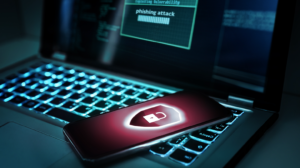
Phishing remains the most common entry point for account compromise and malware infection, largely because it targets human judgement rather than a technical vulnerability, and remote workers, communicating primarily through email, chat, and video calls, face more of these attempts than an office worker who can simply turn and ask a colleague whether a message looks legitimate.
Convincing phishing emails now closely mimic real company communications, complete with accurate logos, plausible sender names, and urgent language designed to prompt a quick, unthinking click. Spear phishing, a more targeted version aimed at a specific individual using personal or company-specific details gathered from social media or previous breaches, has grown more common as attackers invest more effort into fewer, higher-value targets rather than mass-blasting generic messages.
Business email compromise, where an attacker impersonates a senior executive requesting an urgent wire transfer or gift card purchase, specifically exploits the informal, fast-paced communication culture common in distributed teams. Warning signs worth training every remote team member to recognise:
- Urgency and pressure: messages demanding immediate action, especially involving money or credentials, warrant extra scrutiny.
- Mismatched sender addresses: checking the actual email address, not just the display name, often reveals a spoofed sender.
- Unexpected attachments or links: hovering over a link before clicking reveals the true destination URL.
- Requests that bypass normal channels: a request for a wire transfer or credential reset outside standard company process should always be verified separately.
- Slightly altered company branding: subtle inconsistencies in logos, fonts, or formatting can betray a convincing fake.
Verifying unusual or urgent requests through a separate communication channel, a quick phone call rather than replying to the same email thread, catches the majority of phishing and business email compromise attempts before any damage occurs.
Device and Software Update Discipline
Outdated software is one of the most exploited weaknesses in any security setup, since software updates frequently include patches for vulnerabilities that have already been publicly disclosed, giving attackers a known, documented way in until a device catches up.
Remote workers using personal devices for work, a common arrangement in many smaller companies, often fall further behind on updates than company-managed equipment with centrally enforced update policies. Enabling automatic updates across operating systems, browsers, and commonly used applications removes the reliance on remembering to check manually, closing the gap between a patch being released and a device receiving it in practice.
Beyond operating system updates, browser extensions deserve close attention, since a compromised or malicious extension can access far more browsing data than most users realise, and periodically reviewing installed extensions for ones no longer used or recognised is a habit worth building into a regular routine. Update and device hygiene habits worth maintaining:
- Enable automatic updates: covers operating systems, browsers, and major applications without requiring manual intervention.
- Review installed browser extensions periodically: remove anything unused or unrecognised, since extensions carry broad access to browsing activity.
- Keep antivirus and endpoint protection current: even built-in tools like Windows Defender need regular definition updates to remain effective.
- Retire outdated devices from work use: hardware that no longer receives security updates from its manufacturer poses an ongoing, unpatchable risk.
- Back up data regularly: a recent backup limits the damage from ransomware or a device failure, since data can be restored rather than lost entirely.
A five-minute weekly check for pending updates across the devices used for work catches most of the gaps that build up quietly between larger, less frequent maintenance sessions.
Weighing Convenience Against Risk
Every security habit trades some convenience for protection, and the goal is not maximum security regardless of cost but a sensible balance that a person will maintain consistently over time. A password manager adds a few seconds to each login but removes the far larger risk of reused, weak passwords. Two-factor authentication adds a brief extra step but closes one of the most commonly exploited gaps in account security.
The habits that fail long term are usually the ones that demand too much friction relative to the risk they address, which is why starting with the highest-impact, lowest-effort changes, a password manager, two-factor authentication on key accounts, automatic updates, tends to produce better long-term adherence than attempting an exhaustive security overhaul all at once.
Company policy also plays a role: remote workers benefit from clear, reasonable guidelines from their employer rather than being left to interpret best practices alone, and raising the topic with a manager or IT team is a reasonable step if no such guidance currently exists. A sensible way to prioritise security habits without overwhelming a daily routine:
- Start with the highest-impact changes: a password manager and two-factor authentication address the most common attack vectors with minimal ongoing effort.
- Automate what can be automated: updates, backups, and breach monitoring remove the burden of remembering to do them manually.
- Match effort to the sensitivity of the data involved: a personal streaming account warrants less rigour than a work email tied to company systems.
- Revisit the setup periodically: a brief review every few months catches gaps that accumulate gradually and keeps habits from lapsing.
Building security into a routine gradually, rather than attempting everything at once, produces habits that last far longer than a single intense effort followed by gradual neglect once the initial motivation fades.
Final Thoughts
Cybersecurity for remote workers does not require deep technical expertise, only a handful of consistently applied habits: unique passwords managed properly, two-factor authentication on the accounts that matter most, a secured home network, healthy scepticism toward urgent or unexpected requests, and devices kept up to date.
None of these habits are expensive or especially time-consuming once set up, and together they close the great majority of gaps that attackers rely on in practice. Start with the highest-impact changes, a password manager and two-factor authentication, and build outward from there rather than attempting a complete overhaul in a single afternoon.
Frequently Asked Questions
Is a free password manager good enough, or do I need to pay for one?
Free tiers from reputable providers like Bitwarden offer solid core protection, unique password generation, secure storage, and cross-device sync, that covers most individual needs adequately. Paid tiers typically add features like advanced breach monitoring, secure file storage, or family sharing, which matter more for some users than others depending on how the tool will be used.
What should I do if I think I clicked a phishing link?
Disconnect the device from the internet immediately to limit any potential damage, then change passwords for any accounts that may have been exposed, ideally from a different, trusted device. Reporting the incident to a company’s IT or security team promptly, even if unsure whether anything happened, allows them to check for wider impact and warn other employees if needed.
Do I really need a VPN if I mostly work from home?
A VPN matters most on public or unfamiliar networks, so working exclusively from a secured home network reduces its urgency somewhat, though a VPN can still add value for accessing company systems remotely or maintaining privacy from an internet provider. Anyone who occasionally works from a café, co-working space, or while travelling benefits substantially from having one set up in advance.
How often should I update my passwords?
Modern security guidance favours strong, unique passwords stored in a password manager over frequent mandatory changes, since regularly forced password changes often lead to weaker, more predictable patterns. Changing a password immediately after a known breach, rather than on an arbitrary schedule, is now considered the more effective approach.
Is two-factor authentication worth the extra step every time I log in?
Yes, the brief extra step sharply reduces the risk of account compromise even if a password is stolen or guessed, making it one of the highest-value security habits available for the effort involved. Many services also offer a “remember this device” option that reduces how often the second step is required on trusted devices.
What is the biggest cybersecurity mistake remote workers make?
Reusing passwords across multiple accounts remains one of the most damaging and common mistakes, since a single breach at any one service can then expose every other account sharing that same password. Skipping software updates and ignoring two-factor authentication on important accounts follow closely behind as frequent, avoidable gaps.