
A factory reset can make your Windows 11 PC feel brand new within minutes. However, that fresh start can become frightening when your important files suddenly disappear. Photos, documents, videos, projects, and personal folders may seem completely erased. Fortunately, a reset does not always mean your data has vanished forever. The recovery process depends heavily on your storage type and reset method. It also depends on what happened after Windows finished reinstalling.
Therefore, stop using the affected computer whenever possible. Every new download, update, installation, or saved file can overwrite recoverable information.
This guide explains how to recover files after a factory reset on Windows 11. It covers backups, cloud storage, Windows recovery options, and professional recovery software.
Can You Recover Files After a Windows 11 Factory Reset?
Yes, file recovery can sometimes succeed after a Windows 11 factory reset. However, success depends on how Windows removed the data. During certain reset operations, Windows makes previous storage space available again. The operating system can then reuse that space for new information.
Consequently, deleted file data may remain physically present for some time. Recovery software can sometimes locate those remaining fragments.
However, recovery becomes increasingly difficult after extensive drive activity. Therefore, immediate action provides the best opportunity for successful recovery.
What Actually Happens During a Factory Reset?
Windows 11 provides different reset choices for users. The selected option significantly affects your chances of recovering deleted files. The Keep my files option reinstalls Windows while preserving personal files. However, applications and many system settings are removed. The Remove everything option removes personal files, applications, and settings. This option creates a much greater risk of data loss.
Windows may also offer a Clean data option during certain reset processes. That option makes recovery substantially more difficult because it aims to erase data more thoroughly.
Therefore, remember which reset option you selected. That information can help determine the most appropriate recovery method.
Stop Using the Computer Immediately
This step is often more important than choosing recovery software. After resetting Windows, avoid downloading large files or installing unnecessary applications. Do not copy videos, photos, or documents onto the affected drive. Also, avoid repeatedly restarting the computer without a specific reason. Windows may perform updates and background operations after the reset.
Those activities can write new information onto previously occupied storage space. As a result, valuable file fragments could become permanently overwritten.
If possible, use another computer to download recovery software. Then install the recovery application onto an external drive or separate storage device.
Check OneDrive Before Attempting Advanced Recovery
Cloud synchronization can make file recovery much easier. If OneDrive previously synchronized your Desktop, Documents, or Pictures folders, check your account first. Sign into your Microsoft account after completing the Windows setup. Then allow OneDrive enough time to synchronize your stored files. Your missing documents may simply need to download again.
Also check the OneDrive recycle bin for recently deleted content. Some files can remain available there for a limited period.
This approach is safer than immediately scanning your internal drive. Therefore, always investigate cloud backups before using aggressive recovery methods.
Check Windows Backup and File History
Windows provides several backup options that users can configure before problems occur. If you previously enabled File History, your personal files may have earlier versions. Connect the backup drive and check whether your folders are available. Windows Backup may also restore certain settings and synchronized content. However, available recovery options depend on your previous configuration.
Therefore, do not assume backups exist simply because Windows Backup appears installed. Check the actual backup destination and verify that your files are present.
Check External Drives and USB Backups
Many users manually back up important information to external storage. Check USB drives, external hard drives, and portable SSDs used before resetting Windows. Also examine older backup folders stored on secondary computers.
Search for common locations containing important files. These locations include Desktop, Documents, Pictures, Videos, and Downloads.
Additionally, check project-specific folders that you created manually. Sometimes users remember the files but forget where they stored backup copies.
Use Data Recovery Software Carefully
When backups fail, data recovery software becomes another option. Recovery applications scan storage for file structures and remaining data fragments. Some tools can locate files that Windows no longer displays.
However, you should install recovery software carefully. Installing it directly onto the affected drive can overwrite recoverable information.
Whenever possible, use another computer to prepare the recovery environment. You should also save recovered files onto a different physical drive. Do not recover files back onto the same partition being scanned. Doing so can overwrite other files that you still need.
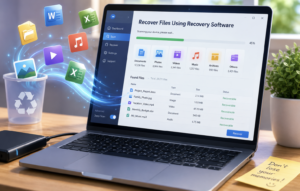
How to Recover Files Using Recovery Software
The exact interface differs between recovery applications. Nevertheless, most tools follow a similar recovery process.
Step 1: Connect Another Storage Device
Prepare an external drive with enough space for recovered files. Choose a destination that differs from the affected Windows partition.
Step 2: Launch a Trusted Recovery Tool
Open your selected recovery application and choose the affected drive. Look for options such as deleted-file recovery or lost-data scanning.
Step 3: Run an Initial Scan
Start with the standard or quick scan when available. This scan can locate recently deleted files and recognizable file structures. If necessary, perform a deeper scan afterward. Deep scans usually take longer because they inspect storage more extensively.
Step 4: Filter the Results
Large drives can produce thousands of recovery results. Therefore, filter results by file type, folder, name, or extension. Search for common formats such as DOCX, XLSX, JPG, PNG, MP4, and PDF. This approach can make the recovery process much faster.
Step 5: Preview Recoverable Files
Use the preview feature when your recovery software supports it. Previewing helps confirm whether a file remains usable. A recognizable filename does not always guarantee successful recovery. Some files may contain damaged or incomplete data.
Step 6: Recover Files to Another Drive
Select the files you need and begin recovery. Always save them to separate storage whenever possible. Never choose the original Windows partition as the recovery destination. This precaution reduces the possibility of overwriting additional recoverable information.
Why SSD Recovery Can Be More Difficult
Storage technology plays an important role in recovery success. Traditional HDDs can retain deleted data until new information overwrites it. SSDs operate differently because they support technologies such as TRIM. TRIM helps SSDs manage deleted data and maintain performance. However, it can also make traditional deleted-file recovery more difficult.
Therefore, successful recovery from an SSD is never guaranteed. The result depends on the drive, reset process, operating system behavior, and timing.
Can Windows File Recovery Help?
Microsoft provides a command-line utility called Windows File Recovery. It can recover certain deleted files from local storage devices. The tool supports different recovery modes for different storage situations. However, its command-line interface can feel complicated for inexperienced users.
You should also avoid installing utilities onto the affected drive unnecessarily. Prepare your recovery environment carefully before scanning important storage.
When Should You Contact a Professional?
Professional recovery may become necessary when software cannot locate important files. Consider professional assistance when the drive shows physical problems. Strange noises, disappearing partitions, repeated errors, and connection failures require extra caution.
Do not repeatedly scan a failing physical hard drive. Continued operation can potentially worsen mechanical problems.
Professional laboratories can use specialized equipment and controlled recovery procedures. Although expensive, this option can be worthwhile for irreplaceable business or personal data.
Common Mistakes That Reduce Recovery Chances
Several actions can make successful recovery much harder. First, avoid installing Windows repeatedly on the same drive. Each installation can overwrite previously recoverable information. Second, do not download large applications onto the affected partition. Large installations can consume substantial amounts of previously available storage.
Third, avoid saving recovered files onto the original drive. Recovered files should always go somewhere else. Finally, do not immediately format the drive again. Additional formatting can further complicate the recovery process.
How to Prevent Data Loss After Your Recovery
Recovery should also teach you how to prevent another disaster. Keep at least one regular backup outside your primary computer. Cloud storage can protect important documents from local hardware problems. Additionally, use an external drive for larger personal collections. Keep that drive disconnected when you are not actively backing up.
You should also enable automatic synchronization for frequently used folders. This approach reduces dependence on manual backups.
For critical files, consider maintaining multiple copies in different locations. A simple backup strategy can save hours of stressful recovery work later.
A Simple Recovery Strategy for Windows 11 Users
Start with cloud storage and existing backups before scanning your computer. Those options usually provide the safest recovery path. Next, stop unnecessary activity on the affected drive. Then use reputable recovery software if no backup exists.
Save recovered files to another storage device. Finally, consider professional recovery if the drive shows physical problems. This order minimizes unnecessary changes to potentially recoverable data.
Conclusion
A Windows 11 factory reset can feel like a complete digital disaster. However, missing files are not always permanently lost. Your first priority should be preventing further changes to the affected drive. Next, check OneDrive, Windows Backup, File History, and external storage.
If those options fail, recovery software may locate remaining file data. However, success depends on the reset method and subsequent drive activity. SSD technology can also make recovery more challenging than traditional hard drives.
Therefore, quick action remains one of the most important recovery steps. Most importantly, create reliable backups before performing major Windows maintenance. A few minutes of preparation can prevent hours of stressful recovery attempts.
FAQ’s
1. Can I recover files after resetting Windows 11?
Yes, recovery may be possible if the deleted data has not been overwritten.
2. Does a factory reset permanently delete everything?
Not always, because some reset processes can leave recoverable data behind.
3. Can I recover files without backup?
Yes, specialized recovery software may find files when no backup exists.
4. Is SSD recovery possible after a factory reset?
SSD recovery is possible sometimes, but TRIM can significantly reduce recovery chances.
5. Should I keep using my computer after resetting it?
No, minimize drive activity until you complete your recovery attempt.
6. Can OneDrive restore files after a factory reset?
Yes, synchronized OneDrive files can become available again after signing into your account.
7. Can File History recover my deleted files?
Yes, File History can restore earlier versions when it was enabled beforehand.
8. Where should I save recovered files?
Save recovered files to a different physical drive whenever possible.
9. Can Windows File Recovery restore factory-reset files?
It can recover some deleted files, depending on storage conditions and available data.
10. When should I use professional data recovery?
Use professional recovery when software fails or the storage device shows physical problems.
11. Can reinstalling Windows improve recovery chances?
No, reinstalling Windows can overwrite recoverable data and reduce recovery chances.
12. How can I prevent future file loss?
Use automatic cloud synchronization and maintain regular backups on separate storage devices.