

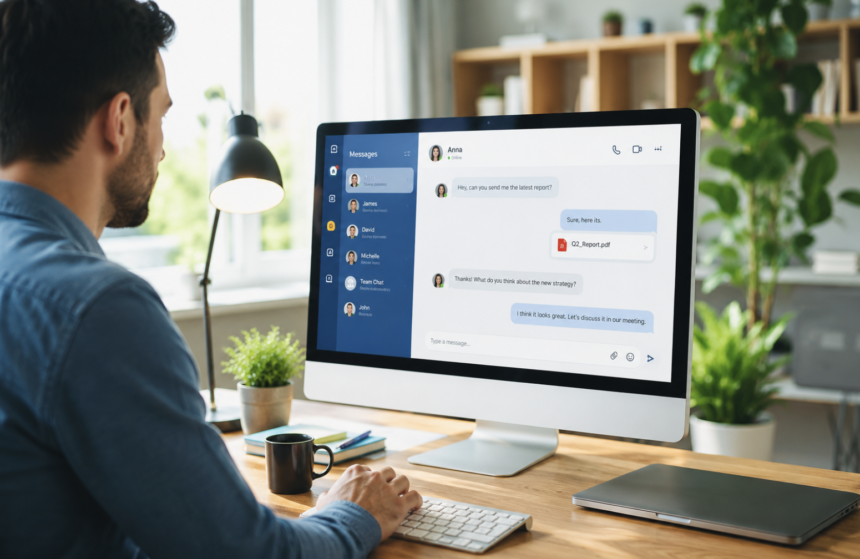
Your phone may never leave your hand, but your computer can still be the better place for serious conversations. That sounds surprising in a mobile-first world. However, messaging has evolved far beyond sending quick texts to friends. Today, people use messaging platforms for business discussions, customer support, project coordination, education, file sharing, communities, and remote collaboration. Consequently, desktop messaging has gained a different kind of importance. A smartphone delivers unmatched mobility and convenience. Meanwhile, a desktop gives users a larger workspace, faster typing, easier file handling, and better multitasking. The real question is no longer whether desktop messaging can compete with mobile communication.
Instead, it is how both platforms can work together. Modern users often move between phones, laptops, tablets, and browsers throughout the day. Therefore, messaging platforms must provide a consistent experience across different environments.
From productivity and accessibility to security and collaboration, desktop messaging continues to solve problems that small screens cannot always handle efficiently.
Why Desktop Messaging Still Deserves Your Attention
Mobile messaging dominates everyday communication because smartphones remain constantly available. Users can reply while traveling, waiting in line, or taking a short break. They can also send photos, voice notes, videos, and quick reactions within seconds. However, convenience does not always equal efficiency. Long conversations can become tiring on a touchscreen. Likewise, reviewing several attachments becomes harder when the display offers limited space. Desktop messaging solves many of these challenges. A physical keyboard allows users to compose detailed responses faster. A larger monitor also makes long conversations easier to follow.
Furthermore, desktop environments allow messaging to sit beside other applications. Users can keep a browser, spreadsheet, email client, project dashboard, and messaging window open simultaneously.
This arrangement creates a more connected digital workspace. Instead of constantly switching between a phone and computer, users can manage communication from the same environment.
The Keyboard Advantage Changes Long Conversations
Typing speed plays an important role in communication. Touchscreens work extremely well for short messages. However, longer responses require more concentration and repeated tapping. A physical keyboard provides a more comfortable alternative.
Professionals can write emails, proposals, project updates, technical explanations, and customer responses without relying on a small touchscreen. Students can also participate in lengthy group discussions while referencing notes or research material.
Moreover, keyboard shortcuts can speed up repetitive actions. Copying text, pasting information, searching conversations, and switching applications can become much faster. As a result, desktop messaging becomes especially valuable when communication requires more than a few sentences.
Large Screens Make Messaging Easier to Manage
Screen size can dramatically affect how people interact with information. A smartphone usually displays one primary task at a time. A desktop monitor can display multiple windows together.
For example, a user might keep a client conversation open beside a design project. Another user could review a spreadsheet while discussing figures with colleagues. This setup reduces unnecessary application switching. It also makes conversation history easier to review.
Long messaging threads often contain important details, links, decisions, and attachments. A larger display allows users to navigate these conversations without constantly scrolling through a narrow interface. Therefore, desktop messaging becomes increasingly useful as conversations become more complicated.
Desktop Messaging Fits Naturally Into Remote Work
Remote work has changed how teams communicate. Employees may no longer share the same office, yet they still need continuous communication. Messaging platforms help teams exchange quick updates without scheduling another meeting. Desktop access makes this process even smoother. Workers can respond while managing their normal responsibilities. They can also share documents directly from their computer.
For instance, a project manager can send an updated timeline after editing it. A designer can share a revised visual without transferring the file to a phone first. Developers can discuss technical issues while working inside development environments.
Similarly, freelancers can communicate with international clients while managing invoices, documents, and project files. Thus, desktop messaging becomes part of the broader remote-work infrastructure.
Desktop Messaging Can Reduce Device Switching
Constantly moving between devices can interrupt concentration. A user may receive a message on a smartphone while working on a laptop. They then pick up the phone, respond, put it down, and return to the original task. This process seems harmless. However, repeated interruptions can fragment attention throughout the day. Desktop messaging provides an alternative.
Users can keep conversations visible within their existing workspace. Consequently, they can respond without physically reaching for another device.
This approach does not eliminate distractions. Instead, it gives users greater control over how communication fits into their workflow.
File Sharing Becomes More Practical on a Computer
Modern messaging involves much more than text. People frequently exchange PDFs, spreadsheets, presentations, images, videos, archives, screenshots, and project documents. A desktop provides better tools for handling these files. Users can organize downloads into folders. They can rename documents and compare multiple versions. They can also move files between messaging applications and cloud storage with fewer steps. Drag-and-drop functionality adds another layer of convenience.
Imagine receiving a presentation from a colleague. You can open it, make changes, save the revised version, and send it back from the same computer.
That workflow is possible on mobile devices too. Nevertheless, desktop systems generally provide greater control when several files are involved.
Multitasking Gives Desktop Messaging a Clear Edge
Communication rarely happens in isolation. People often need to research information while answering messages. A business owner might check an order dashboard while speaking with a customer. A student may review an online lecture while discussing an assignment. A developer might inspect documentation while troubleshooting a software issue.
Desktop environments support these workflows naturally. Multiple windows, browser tabs, virtual desktops, and split-screen layouts can keep relevant information visible.
Therefore, messaging becomes another layer of the working environment rather than a separate activity. This advantage becomes particularly important for people who communicate frequently during focused tasks.
Desktop Messaging Supports Better Collaboration
Team communication increasingly depends on rapid information exchange. Messaging can help teams share updates without creating unnecessary meetings. However, collaboration often involves context. A useful discussion might include several links, documents, screenshots, instructions, and previous decisions. Desktop interfaces make these conversations easier to navigate.
Users can search previous messages while keeping the current conversation open. They can also compare files and reference other applications.
Consequently, desktop messaging can support deeper collaboration than simple mobile texting. This benefit applies to businesses, schools, creative teams, online communities, and independent professionals.
Desktop and Mobile Messaging Should Work Together
The strongest communication setup does not force users to choose one device. Instead, it allows each device to perform its best role. A smartphone works well when mobility matters. A desktop works better when productivity and detailed communication become priorities. Consider a typical day. A commuter checks messages from a phone during the morning. Later, they continue the conversation from a laptop.
During work hours, they handle documents and longer replies on the desktop. After leaving the office, they return to the smartphone.
If synchronization works properly, the transition feels almost invisible. This cross-device experience is one of the biggest strengths of modern messaging.
Cross-Device Synchronization Is More Important Than Ever
Synchronization determines how smoothly users can move between devices. A conversation should ideally remain available regardless of the device being used. Users expect recent messages, shared files, and conversation history to remain accessible. However, synchronization can vary between messaging platforms.
Some services depend heavily on cloud storage. Others may handle local data differently. Therefore, users should understand how their preferred platform manages messages and files.
They should also consider what happens when one device goes offline. Reliable synchronization becomes especially important for remote workers and people who regularly change locations.
Browser Messaging Offers Another Flexible Option
Users do not always need a dedicated desktop application. Browser-based messaging can provide convenient access from computers without requiring permanent software installation. This option can help people using temporary workstations or managed office computers. It can also provide quick access when installing applications is impractical. However, browser access requires careful security habits.
Users should avoid saving passwords on shared computers. They should also sign out after using public or temporary devices. Downloaded files should receive similar attention.
For personal computers, dedicated desktop applications may provide deeper integration. For occasional access, browser messaging can be more convenient.
Windows, macOS, and Linux Can Offer Different Experiences
Desktop messaging does not operate identically across every operating system. Windows users may encounter different menus, installation processes, permissions, and notification controls. macOS users can experience different application behavior and system settings. Linux users may have additional choices involving repositories, packages, and distributions.
Therefore, users should always verify platform compatibility before installing desktop software. Generic instructions can sometimes create confusion.
A guide written for Windows may mention settings unavailable on macOS. Similarly, Linux users may need distribution-specific instructions. Platform-aware guidance makes desktop messaging easier to configure correctly.
Language Can Change How Users Search for Desktop Messaging
Search behavior also varies between regions and languages. English-speaking users may search for phrases such as “desktop messaging app” or “PC version.” Traditional Chinese users may use terms such as 電腦版 or 桌面版. Simplified Chinese users may search for 电脑版 or 桌面版. Users may also encounter regional nicknames for popular messaging services.
For example, some Chinese-language communities use “paper plane” references when discussing Telegram-related desktop access. This creates an important lesson for technical content.
The same user intent can appear under several search phrases. Therefore, helpful guides should focus on the underlying need instead of relying on one keyword.

Notifications Can Either Help or Hurt Productivity
Desktop notifications provide immediate awareness. However, excessive alerts can quickly become distracting. Every sound, banner, or popup can pull attention away from important work. Users should therefore customize notifications according to priority.
They can mute noisy group conversations while keeping direct messages active. They can also disable message previews when working in shared spaces.
Operating-system focus modes provide another useful option. Scheduled communication checks can further reduce interruptions. The goal is not to eliminate notifications. Instead, the goal is to make notifications serve the user’s workflow.
Desktop Messaging Requires Strong Security Habits
Convenience should never replace security. A desktop messaging account can remain signed in for long periods. That creates risks if someone else gains access to the computer. Users should regularly review active sessions and connected devices. Old browsers and unused computers should be removed when possible.
Two-step verification can provide an additional layer of account protection when supported. Screen locks also matter. A password-protected account offers limited protection if an unlocked computer remains unattended.
Users should also keep operating systems and messaging applications updated. Security updates can address vulnerabilities and improve overall reliability.
Privacy Settings Deserve Regular Attention
Messaging platforms often provide several privacy controls. These settings can influence who sees profile information, contact details, activity indicators, or message previews. Users should review these options instead of accepting every default. Shared environments require extra caution.
For example, notification previews may display private messages on a visible screen. Users can disable previews or adjust lock-screen settings when necessary.
Likewise, sensitive files should not remain unnecessarily stored on shared computers. Privacy works best when users actively manage their digital environment.
Desktop Messaging Can Improve Accessibility
Accessibility is another reason desktop communication remains important. Larger screens can help users who struggle with small text. Keyboard input can also provide an alternative to touchscreen typing.
Operating systems offer additional accessibility features, including text scaling, magnification, keyboard controls, and other assistive settings. These options can make digital communication more comfortable.
Therefore, desktop messaging is not simply about productivity. It can also help users interact with communication tools according to their individual needs.
How to Choose the Right Desktop Messaging Setup
Choosing a desktop messaging solution starts with understanding your communication habits. Heavy file sharing requires strong file-management features. Frequent team collaboration requires reliable synchronization and group communication. Privacy-conscious users should examine security controls and session management.
People using several operating systems should check cross-platform support. Browser access may matter when users frequently work from different computers.
Meanwhile, notification controls become essential for people who need long periods of uninterrupted concentration. The best setup is therefore the one that matches the user’s actual workflow.
A Practical Desktop Messaging Checklist
Start by confirming your operating system. Then, choose the correct desktop application or browser option. Always obtain software from a trustworthy source. Next, configure notifications around your priorities. Review where downloaded files are stored.
Enable available account-security features. Check connected devices and active sessions regularly. Keep the operating system and messaging software updated.
Avoid storing sensitive information on shared computers. Finally, maintain mobile access for situations where desktop communication is unavailable.
The Future of Desktop Messaging Is More Connected
Desktop messaging is not disappearing because smartphones became popular. Instead, messaging is becoming more connected across devices. Future communication tools will likely continue combining chat, file sharing, voice communication, video meetings, collaboration, automation, and productivity features. Artificial intelligence may also make desktop communication more useful.
Smart search, message summaries, translation, transcription, and automated organization can reduce the time users spend managing conversations. However, the basic advantage of desktop communication will remain.
A larger screen and physical keyboard provide a practical environment for complex interaction. As work becomes increasingly digital, that advantage will continue to matter.
Conclusion: Desktop Messaging Is Still Built for Serious Communication
Mobile messaging changed how quickly people communicate. However, it did not eliminate the need for computers. Desktop messaging remains valuable because it combines communication with productivity. It makes long conversations easier to manage. It simplifies file handling and supports multitasking. It also fits naturally into remote work, education, freelancing, and digital collaboration. Meanwhile, mobile devices remain essential for mobility and instant access. The smartest approach is not choosing between desktop and mobile.
It is using both strategically. When users can move smoothly between devices, messaging becomes more flexible, efficient, and practical.
In a world where communication increasingly overlaps with work, study, and collaboration, desktop messaging still has an important place.
Frequently Asked Questions
1. What is desktop messaging?
Desktop messaging allows users to send and receive messages through a computer application or web browser.
2. Is desktop messaging better than mobile messaging?
Desktop messaging is often better for detailed conversations, multitasking, and file management.
3. Can desktop messaging work without a smartphone?
Some platforms support independent desktop access, while others require an associated mobile account.
4. Why do people still use desktop messaging?
People use desktop messaging because computers provide larger screens, physical keyboards, and stronger multitasking capabilities.
5. Is browser messaging safe?
Browser messaging can be safe when users use trusted services, secure computers, and proper sign-out practices.
6. Can desktop messaging improve productivity?
Yes, desktop messaging can reduce device switching and integrate communication with everyday computer workflows.
7. What files can users send through desktop messaging?
Supported platforms commonly allow documents, images, videos, PDFs, spreadsheets, presentations, and other file formats.
8. Does desktop messaging work on Windows and macOS?
Many messaging platforms support both Windows and macOS, although features can differ.
9. How can I protect a desktop messaging account?
Use strong account protection, enable two-step verification, lock your computer, and review active sessions.
10. Should I use desktop or mobile messaging?
Use mobile messaging for mobility and desktop messaging when you need productivity, multitasking, or detailed communication.