

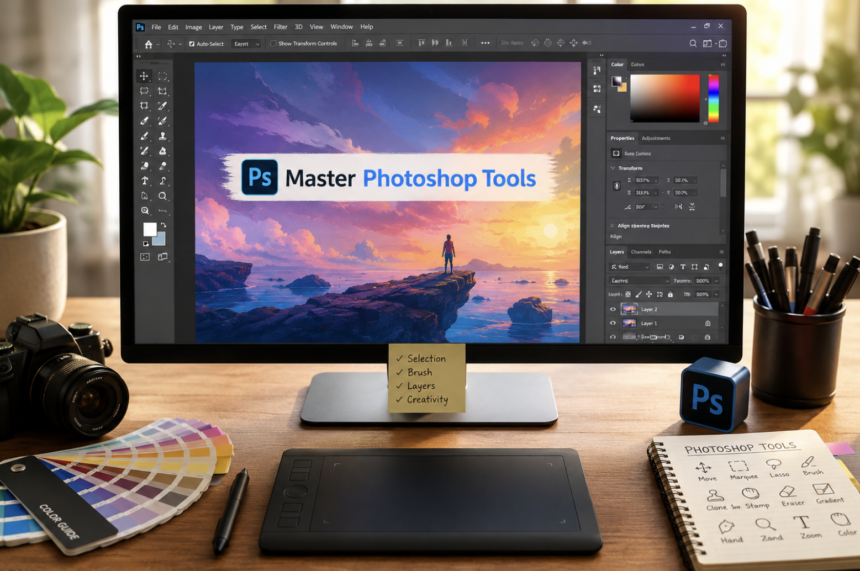
Have you ever opened Adobe Photoshop and felt overwhelmed by the endless icons on the toolbar? You are not alone. Every beginner faces the same challenge. However, learning Photoshop becomes much easier when you understand what each tool does and when to use it. Photoshop is much more than a photo editing program. It is a complete creative platform for photographers, graphic designers, digital artists, marketers, and content creators. Every professional project begins with selecting the right tool for the job.
Instead of memorizing every icon, you only need to understand each tool’s purpose. Once you build that foundation, your editing speed and confidence will improve dramatically. Moreover, modern Photoshop includes AI-powered features that make complex editing tasks easier than ever. This complete guide explains the most important Photoshop tools, their functions, practical uses, and expert tips. Whether you are editing photos, creating graphics, or designing social media content, this guide will help you master Photoshop with ease.
What Are Photoshop Tools?
Photoshop tools are built-in features that allow users to edit, paint, select, transform, and manipulate images. Every action inside Photoshop begins with one of these tools.
For example, if you want to crop a picture, remove unwanted objects, add text, or paint digitally, Photoshop provides a dedicated tool. Each one performs a unique function while working together with layers, masks, and adjustments. The toolbar appears on the left side of the Photoshop workspace. Some icons contain multiple hidden tools. Simply click and hold an icon to reveal additional options. Learning these tools helps you edit more efficiently while producing cleaner and more professional results.
Why Understanding Photoshop Tools Matters
Many beginners jump directly into editing. Unfortunately, this approach often creates unnecessary frustration. Understanding Photoshop tools offers several benefits. It speeds up your workflow. It improves editing accuracy. It reduces mistakes. It increases creative flexibility. It also helps you complete projects with professional-quality results. Instead of struggling through trial and error, you can confidently choose the right tool every time.
Understanding the Photoshop Toolbar
Think of the toolbar as your creative toolbox. Every editing function begins here. Adobe organizes tools into several categories.
- Selection Tools
- Crop Tools
- Retouching Tools
- Painting Tools
- Drawing Tools
- Typography Tools
- Navigation Tools
- AI-Powered Editing Tools
Although Photoshop contains over sixty primary tools, professionals regularly use only a handful for everyday projects. Fortunately, Adobe allows users to customize the toolbar. Therefore, you can hide tools you rarely use and keep your favorites within easy reach.
Selection Tools in Photoshop
Selection tools isolate specific areas before editing. They make targeted adjustments much easier. Without proper selections, professional editing becomes difficult.
Move Tool
The Move Tool is one of the first tools every beginner learns.
It moves layers, graphics, text, and objects around the canvas.
Graphic designers use this tool constantly while creating layouts.
Shortcut: V
Marquee Tools
Marquee Tools create geometric selections. They include:
- Rectangular Marquee
- Elliptical Marquee
- Single Row Marquee
- Single Column Marquee
These tools work perfectly for simple selections, cropping, borders, and design layouts.
Lasso Tools
Lasso Tools create freehand selections. Photoshop offers three versions:
- The standard Lasso Tool allows manual drawing.
- The Polygonal Lasso creates straight-edge selections.
- The Magnetic Lasso automatically snaps to object edges.
These tools work especially well when selecting irregular objects.
Shortcut: L
Quick Selection Tool
The Quick Selection Tool uses intelligent detection to recognize textures and colors.
Simply paint over the subject.
Photoshop automatically expands the selection.
As a result, isolating people and products becomes much faster.
Magic Wand Tool
The Magic Wand selects pixels with similar colors.
It works best on simple backgrounds and solid-colored areas.
Although AI tools are becoming more popular, the Magic Wand still saves time in many situations.
Object Selection Tool
This AI-powered tool automatically identifies subjects.
Users simply drag a selection box around an object.
Photoshop detects its boundaries almost instantly.
Consequently, background removal has become dramatically easier.
Crop and Slice Tools
Cropping improves image composition while removing unwanted areas.
Crop Tool
The Crop Tool helps photographers improve framing.
It also resizes images for websites, blogs, and social media platforms.
Modern Photoshop supports non-destructive cropping. Therefore, you can modify crop settings later.
Shortcut: C
Perspective Crop Tool
Perspective Crop corrects distorted angles.
Architectural photographers frequently use it to straighten buildings.
It also improves photographs taken from unusual viewpoints.
Slice Tools
Slice Tools divide large images into separate sections.
Although web designers use them less today, they still remain useful for exporting image assets.
Retouching and Repair Tools
Professional photo editing relies heavily on retouching tools. These tools remove distractions while preserving image quality.
Spot Healing Brush Tool
This tool automatically removes blemishes, dust, acne, scratches, and tiny imperfections.
Simply paint over the unwanted area.
Photoshop blends surrounding pixels automatically.
It is one of the easiest tools for beginners.
Shortcut: J
Healing Brush Tool
Unlike Spot Healing, this tool requires selecting a source point first.
Photoshop blends texture, lighting, and color naturally.
Professional portrait editors often prefer this method.
Patch Tool
The Patch Tool repairs larger damaged areas.
Users select the damaged section and replace it using another part of the image.
Photoshop blends everything smoothly.
Therefore, the edits appear natural.
Content-Aware Move Tool
This powerful feature allows users to move objects.
Meanwhile, Photoshop automatically rebuilds the background.
It saves countless hours compared to manual editing.
Remove Tool
The Remove Tool uses Adobe AI technology.
Simply brush over unwanted objects.
Photoshop intelligently replaces them using nearby content.
It is now one of the fastest cleanup tools available.
Painting and Drawing Tools
Photoshop also serves as a professional digital art platform. Artists create illustrations, concept art, and paintings using these tools.
Brush Tool
The Brush Tool remains Photoshop’s most versatile feature.
Users can customize brush size, hardness, flow, opacity, and texture.
Thousands of downloadable brushes provide endless creative possibilities.
Shortcut: B
Pencil Tool
The Pencil Tool creates sharp-edged strokes.
Unlike the Brush Tool, it does not soften pixel edges.
Pixel artists often prefer this tool.
Color Replacement Tool
This tool changes colors while preserving lighting and texture.
Designers use it for clothing, products, and branding mockups.
The results usually look very realistic.
Mixer Brush Tool
The Mixer Brush blends colors like traditional paint.
Artists can simulate oil, acrylic, and watercolor techniques.
Consequently, digital artwork appears much more natural.
Clone and Stamp Tools
Clone-based tools help users duplicate pixels from one area of an image to another. They provide greater control than automatic repair tools. Therefore, professional editors often rely on them for detailed retouching.
Clone Stamp Tool
The Clone Stamp Tool copies pixels exactly from a selected source.
It is perfect for restoring damaged photographs, removing unwanted objects, fixing skin imperfections, and recreating missing textures. Because it duplicates pixels without automatic blending, users enjoy complete control over every edit.
Professional photographers frequently combine this tool with healing brushes to produce flawless results.
Shortcut: S
Pattern Stamp Tool
The Pattern Stamp Tool paints with predefined patterns instead of copied pixels.
Although it is not used daily, it remains valuable for creating decorative effects, artistic backgrounds, and textured designs.
Designers also use it to build creative layouts without manually drawing repeating patterns.
Eraser and History Tools
Photoshop offers several methods for removing content while preserving editing flexibility. Each tool serves a different purpose depending on the project.
Eraser Tool
The Eraser Tool removes pixels from the selected layer.
It works much like a traditional eraser. However, many professionals prefer layer masks because they support non-destructive editing.
Even so, the Eraser Tool remains useful for quick projects and simple corrections.
Shortcut: E
Background Eraser Tool
The Background Eraser Tool intelligently removes background colors while protecting the main subject.
It performs especially well when selecting hair, fur, leaves, and other detailed edges.
As a result, creating transparent backgrounds becomes much easier.
Magic Eraser Tool
The Magic Eraser Tool removes areas with similar colors using a single click.
It works best on solid-colored backgrounds.
Consequently, beginners often use it for quick product cutouts.
History Brush Tool
The History Brush restores selected parts of an image to an earlier editing stage.
Instead of undoing the entire project, users can recover only specific areas.
Therefore, it offers excellent editing flexibility.
Art History Brush Tool
The Art History Brush transforms photographs into artistic paintings.
It applies stylized brush strokes based on previous image states.
Digital artists often use this tool to create unique visual effects.
Gradient and Fill Tools
Gradients and fills add depth, color, and visual interest to every design. These tools appear in everything from advertisements to social media graphics.
Gradient Tool
The Gradient Tool creates smooth transitions between multiple colors. Designers use gradients for backgrounds, overlays, lighting effects, and creative compositions. Photoshop offers several gradient styles, including:
- Linear Gradient
- Radial Gradient
- Angle Gradient
- Reflected Gradient
- Diamond Gradient
When combined with layer masks, gradients produce highly professional results.
Shortcut: G
Paint Bucket Tool
The Paint Bucket Tool fills selected areas with color or patterns.
It works best when filling enclosed shapes.
Although simple, it remains effective for illustrations, icons, and graphic design projects.
Blur, Sharpen, and Smudge Tools
These tools control image clarity and visual focus. Editors use them to guide viewers’ attention naturally.
Blur Tool
The Blur Tool softens selected areas.
Photographers often blur backgrounds to create depth.
Likewise, designers use blur to reduce distractions and improve subject focus.
Sharpen Tool
The Sharpen Tool increases edge contrast.
As a result, image details become clearer.
However, excessive sharpening may introduce unwanted artifacts.
Therefore, professionals apply it carefully.
Smudge Tool
The Smudge Tool drags colors together like wet paint.
Artists use it to blend brush strokes naturally.
It also helps create realistic hair strands, smoke effects, and painterly textures.
Dodge, Burn, and Sponge Tools
These classic Photoshop tools control brightness and color intensity. Although simple, they remain powerful.
Dodge Tool
The Dodge Tool lightens selected image areas.
Photographers use it to brighten eyes, highlights, and facial features.
Subtle adjustments often create dramatic improvements.
Burn Tool
The Burn Tool darkens targeted areas.
It strengthens shadows while adding depth and contrast.
Landscape photographers frequently rely on this tool to increase visual impact.
Sponge Tool
The Sponge Tool adjusts color saturation.
Users can either increase or decrease color intensity.
Therefore, selective color correction becomes much easier.
Shortcut: O
Pen and Path Tools
Many professionals consider the Pen Tool Photoshop’s most powerful feature. Although it requires practice, it delivers unmatched precision.
Pen Tool
The Pen Tool creates accurate vector paths using anchor points.
Designers use it for clipping paths, logo creation, product cutouts, and detailed selections.
Unlike automatic selection tools, the Pen Tool offers complete control.
Shortcut: P
Freeform Pen Tool
The Freeform Pen Tool allows users to draw paths naturally.
Instead of placing anchor points manually, users sketch freely.
It works well for quick projects.
Curvature Pen Tool
The Curvature Pen Tool simplifies path creation.
Photoshop automatically creates smooth curves between anchor points.
Therefore, beginners often find it easier than the standard Pen Tool.
Shape Tools
Shape Tools create scalable vector graphics. Unlike raster graphics, vector shapes remain sharp regardless of size. Photoshop includes several options:
- Rectangle Tool
- Ellipse Tool
- Polygon Tool
- Line Tool
- Custom Shape Tool
Designers regularly use these tools for icons, banners, buttons, web layouts, and marketing materials.
Shortcut: U
Type Tools
- Typography is essential in graphic design.
- Photoshop offers several text editing tools for creative projects.
- The Horizontal Type Tool creates standard text layers.
- Meanwhile, the Vertical Type Tool produces vertical text.
- Type Mask Tools convert text into editable selections.
As a result, designers can create image-filled text effects, creative typography, and promotional graphics with ease.
Shortcut: T
Navigation Tools
Efficient navigation saves valuable editing time. Photoshop includes several tools that improve workflow.
Hand Tool
The Hand Tool moves around the canvas without changing zoom levels.
Editors use it constantly when working with large images.
Shortcut: H
Rotate View Tool
The Rotate View Tool temporarily rotates the canvas.
Digital artists find this feature especially helpful while drawing.
It provides more comfortable working angles.
Zoom Tool
The Zoom Tool enlarges or reduces the canvas view.
Close-up editing becomes much easier with accurate zoom control.
Professional retouchers constantly zoom in and out while working.
Shortcut: Z
Expert Tips for Using Photoshop Tools More Efficiently
- Learning Photoshop tools is only the beginning.
- Professional editors improve their speed by following smart workflows.
- First, memorize keyboard shortcuts because they reduce unnecessary clicks.
- Next, customize your toolbar to remove tools you rarely use.
- Additionally, organize your workspace according to your editing style.
Most importantly, practice non-destructive editing by using adjustment layers and layer masks instead of permanently changing images. Finally, explore Adobe’s AI-powered tools regularly because new updates continue making editing faster and easier.
Conclusion
Photoshop remains the world’s leading image editing software because of its powerful collection of creative tools. Every feature serves a specific purpose, whether you are selecting subjects, repairing photographs, painting digital artwork, or designing professional graphics. Beginners should focus on mastering the Move Tool, Selection Tools, Crop Tool, Brush Tool, Pen Tool, and Type Tool before exploring advanced features.
As your confidence grows, combining multiple tools will become second nature. The more you practice, the faster your workflow becomes. Eventually, Photoshop transforms from an intimidating program into a powerful creative companion capable of producing stunning professional results.
Frequently Asked Questions
1. How many tools are available in Photoshop?
Photoshop includes more than 60 primary tools with several hidden variations.
2. Which Photoshop tools should beginners learn first?
Start with the Move, Crop, Brush, Selection, Type, and Healing tools.
3. Can I customize the Photoshop toolbar?
Yes, Photoshop allows complete toolbar customization.
4. Which tool removes unwanted objects quickly?
The Remove Tool offers the fastest AI-powered object removal.
5. What is the difference between the Healing Brush and Clone Stamp Tool?
The Healing Brush blends textures automatically, while the Clone Stamp copies pixels exactly.
6. Which Photoshop tool is best for cutting out objects?
The Object Selection Tool and Pen Tool provide excellent object selections.
7. What is the shortcut key for the Brush Tool?
The keyboard shortcut for the Brush Tool is B.
8. Can Photoshop tools be used for digital painting?
Yes, Photoshop offers professional painting tools for artists and illustrators.
9. Which tool creates vector paths?
The Pen Tool creates accurate vector paths.
10. Where is the Photoshop toolbar located?
By default, the toolbar appears on the left side of the Photoshop workspace.